
Product
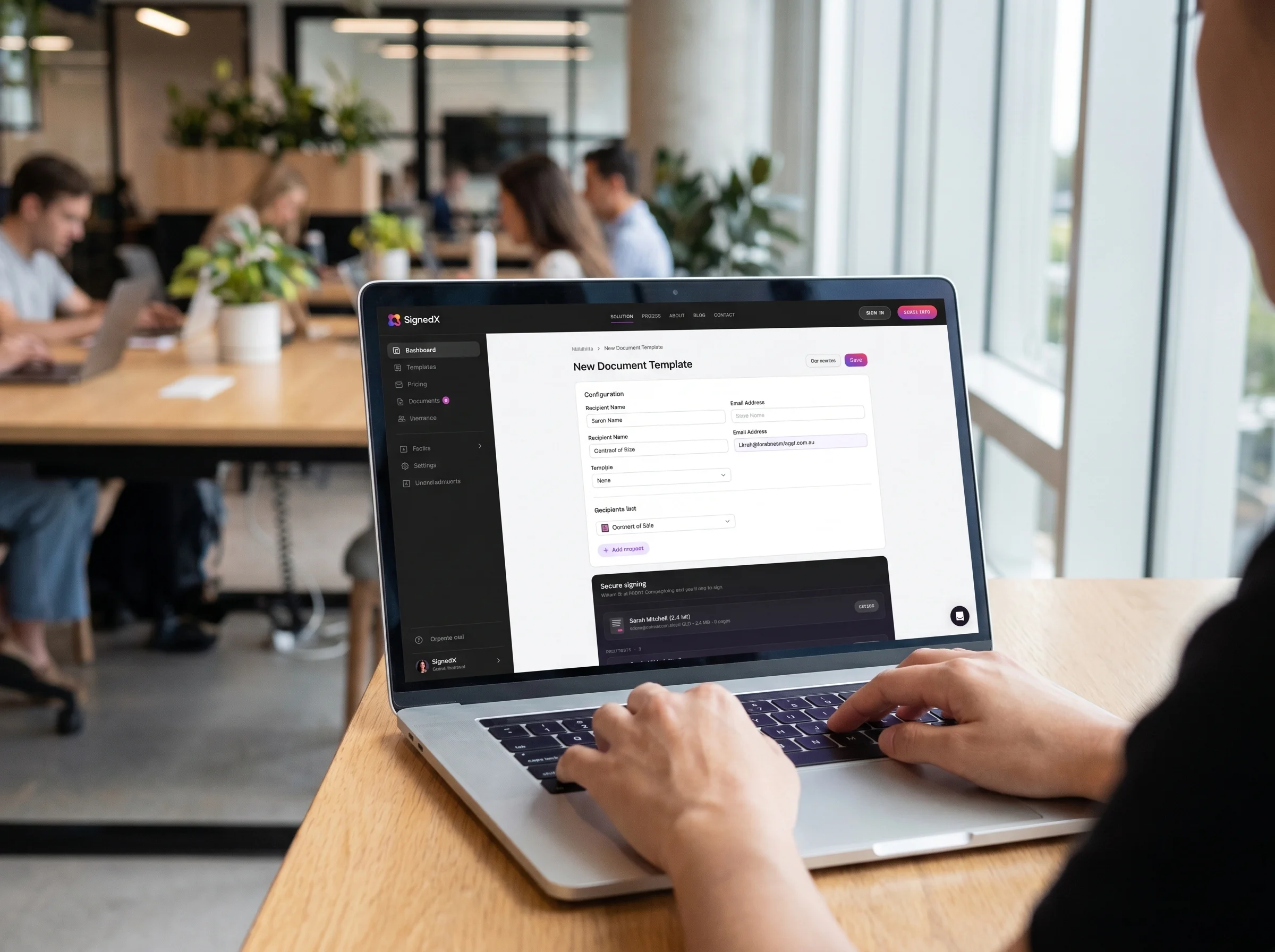
If you send the same kind of document more than once a month, you're doing more work than you need to.
Templates are the difference between rebuilding an envelope from scratch every time and clicking Send in two minutes flat. They're the highest-leverage thing in any eSign platform, and the one most people skip when they get started.
Here's how to set one up properly the first time, so you don't have to redo it the second.
What a template actually is
A template is a saved version of a document with three things baked in:
The document itself — the PDF you want signed.
The fields — where signatures, initials, dates, and other inputs go on the page.
The recipient roles — who fills in which fields, in what order.
The document and the fields stay constant. The recipients change every time you send. That's the whole idea.
Step 1: Pick a document worth templating
Not every document is template-worthy. The rule of thumb: if you'll send essentially the same document more than three times in a quarter, template it.
Good candidates:
Engagement letters and costs disclosures
Listing agreements and sales authorities
Lease renewals and condition reports
NDAs and standard service agreements
Independent contractor agreements
Bad candidates:
Heavily negotiated commercial contracts (changes every time)
One-off settlement deeds
Anything with significant variable clauses you'd otherwise rewrite
If you're not sure, look at your sent folder for the last 90 days. The patterns are usually obvious.
Step 2: Upload the document
Upload a clean version of the PDF. "Clean" means:
All variable text already filled in as the merge fields you'll use later (e.g. "[Client Name]" or "{client_name}" — a placeholder you can search-replace at send time).
No prior signatures or signing fields from a previous version.
Final formatting locked. If your firm changes the letterhead next month, the template needs to be replaced anyway.
Avoid editing the underlying PDF after the template is built. Field placement is anchored to coordinates on the page — if you re-export the PDF and the layout shifts by 5mm, the signature fields will land in the wrong place.
Step 3: Place the fields
Field placement is where most templates go wrong. Two principles:
Place fields where the eye expects them. If the document already has a signature line, put the signature field on the line. If it doesn't, place the field directly under the signer's printed name. Don't make the signer hunt.
Place exactly the fields you need. No more. Every field is a chance for the signer to pause, get confused, or close the tab. Required signature, required date, optional initial fields if the document is multi-page — that's usually it.
A standard residential listing agreement might have:
Signature field for vendor
Date field next to vendor signature (auto-populated when signed)
Signature field for agent
Date field next to agent signature
Optional initial fields on each page (only if your firm requires them)
Six fields. Done.
Step 4: Define the recipient roles
A recipient role is a label, not a person. "Vendor" is a role. "Sarah Chen" is the person who fills the role this time.
For each role, set:
A role name — "Vendor", "Purchaser", "Witness", "Internal Reviewer".
The fields they fill — only the fields tagged for that role show up for them.
Their place in the signing order (next step).
Name your roles clearly. "Vendor 1 / Vendor 2" is better than "Signer 1 / Signer 2". When you're sending the envelope to two people you don't see often, the role names are the cue that you've got the right person in the right slot.
Step 5: Set the signing order
Signing order matters when one signature needs to happen before another — e.g. internal review before the client signs, or vendor before agent.
Three common patterns:
No order (parallel): Everyone signs at the same time. Use this when order doesn't matter.
Sequential: Recipient 1 signs, then Recipient 2 signs, then Recipient 3. Use this for review-then-client flows.
Conditional: Recipient 2 only signs if Recipient 1 signs. Less common, but useful for approval chains.
Sequential is the most useful and most underused. Set it up once in the template and it runs every time without you touching it.
Step 6: Add automatic reminders
Humans forget to sign things. Reminders solve this without anyone having to chase.
A sensible default:
Reminder 1: 2 days after sending, if not yet signed.
Reminder 2: 5 days after sending.
Final reminder: 7 days after sending.
Don't set reminders too aggressively. Daily reminders feel pushy and reduce signing rates. Two days is the sweet spot for the first nudge.
Step 7: Test it on yourself
Before you put a template into production, send it to your own email address and complete it.
Things to check:
Do the fields land in the right place when the document opens?
Does the signing order behave the way you expect?
Does the Certificate of Completion contain the right metadata?
Does the email subject line look professional, or does it say "Document from [Your Org]"?
Fix anything that's off. The first send to a real client is not the time to discover that the date field is missing.
Step 8: Use it. Refine it.
A template is not a one-time setup. The first version of a template is rarely the final version.
After ten or twenty real sends, you'll notice things:
A field you didn't need.
A field you wish you'd added.
A signing order step that's slowing things down.
A reminder cadence that's too soon or too late.
Update the template. Save the new version. Move on. The whole point is that the time you invest once compounds across every future send.
Common mistakes
A few patterns to avoid:
Building a separate template for every minor variant. If two documents differ only by a paragraph, use one template and a custom field for the variable text.
Over-fielding the document. Too many required fields slow down completion. Cut anything that isn't essential.
Putting the signing order on autopilot without checking. A bad order — e.g., agent signs before vendor — sends the wrong message about who's leading the deal.
Forgetting about renewals. Templates anchored to a specific year ("2025 Costs Disclosure") need to be refreshed annually. Build a calendar reminder.
The bottom line
Templates are the highest-leverage thing in any eSign platform. The first one takes 15–20 minutes to build properly. Every subsequent send takes 30 seconds.
For a busy property or legal practice, the maths is obvious within a week. The only mistake is delaying.
Frequently asked questions
Q. What is an eSignature template?
An eSignature template is a saved document with field placement and recipient roles pre-configured, so you can send the same kind of document repeatedly without rebuilding it each time.
Q. How long does it take to set up an eSignature template?
A properly built template takes 15–20 minutes for a standard document. Each subsequent send using that template takes around 30 seconds.
Q. What documents are best for templating?
Documents you send three or more times per quarter with the same structure — engagement letters, listing agreements, lease renewals, NDAs, and standard service agreements are the most common.
Q. Can I have multiple recipient roles in one template?
Yes. Most eSign platforms support multiple roles (e.g. Vendor, Purchaser, Witness) with different fields assigned to each, plus a defined signing order between them.
Q. How often should I update an eSignature template?
Update when the underlying document changes, when a regulatory or compliance change affects the content, or annually as part of a routine review.
continue reading